
How to Upload Degree Certificates and Translations for Your WES Evaluation
After you submit your WES application, the next step is to gather and submit documents in support of your evaluation. The document list and instructions in your account will detail exactly what we need from you.
Degree certificates and translations are not a requirement for everyone, so you can disregard this step if you have already submitted these documents or if they are not listed in your required documents.
However, if your account states that you need to provide degree certificates and translations, read on to learn more. In this blog post, we’ll walk through how to upload these documents.
The first section provides step‑by‑step instructions for the current WES application, and the second section guides you through the process in the new WES portal which launched in late January 2026. Both portals are fully supported and secure.
File upload requirements
Before getting started, please note the following requirements to ensure a quick and seamless upload:
- Upload only PDF or JPEG files.
- The maximum file size is 10 MB.
- You can upload a total of 20 files. Please consider combining several pages into one file if they are related.
- Do not password protect your PDF.
- Only upload correct, clear, legible documents. Once uploaded, they cannot be deleted.
Later in this blog post, we will talk about what to do if you encounter any errors in this process.
How to Upload Documents in the Current WES Applicant Portal
Start with this helpful video to see the process for uploading your degree certificates or translations. Continue reading below the video for detailed step-by-step instructions.
Get Started
Here are the steps to upload your degree certificates and translations:
-
- Log in to your account.
- From your Account Timeline, scroll down to the Upload Degree Certificates and Translations section.
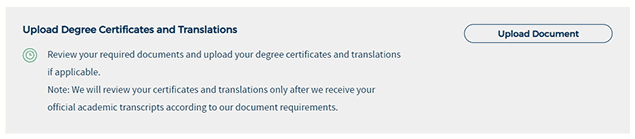
- Click the Upload Document button to begin.
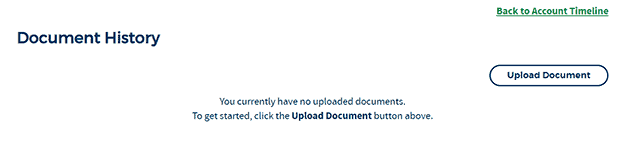
- The next screen to appear is the Document History page. Any files you upload will be listed here. Click the Upload Document button to proceed.
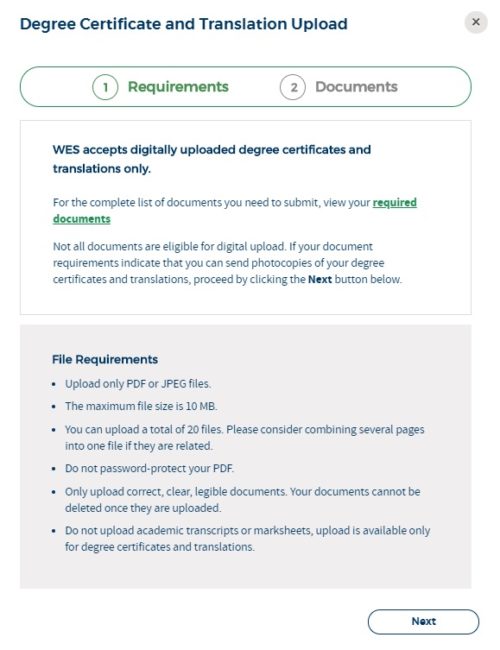
- A new window will appear, giving you the option of viewing your Required Documents prior to uploading your degree certificates and translations. Please review this list to ensure that you submit the correct documents. Remember, do not upload academic transcripts or mark sheets here. Click the Next button to proceed.
- The next window is where you can either drag and drop your files or click the Browse button to upload from your device. After uploading, use the Preview button next to each file to confirm the correct documents were submitted, and the images are clear and high quality. Once you submit your documents, you cannot delete them. Check the box next to I understand, then click the Submit button.

- Once a file has been uploaded successfully, it will appear in the window. Click the Close button to return to your Document History list where all your uploaded documents will be listed.

How to Upload Documents in the New WES Applicant Portal
Watch this quick video below to see how to upload documents to your WES account in the new portal.
Here are the step-by-step instructions.
1. First, log in to your WES account with your username and password.
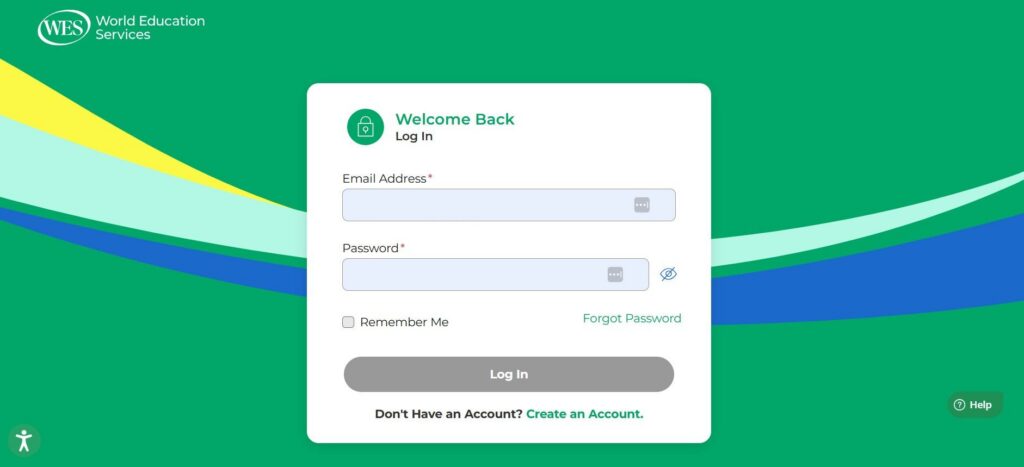
2. After submitting your information and payment details, you will receive your reference number and be instructed to upload your documents.
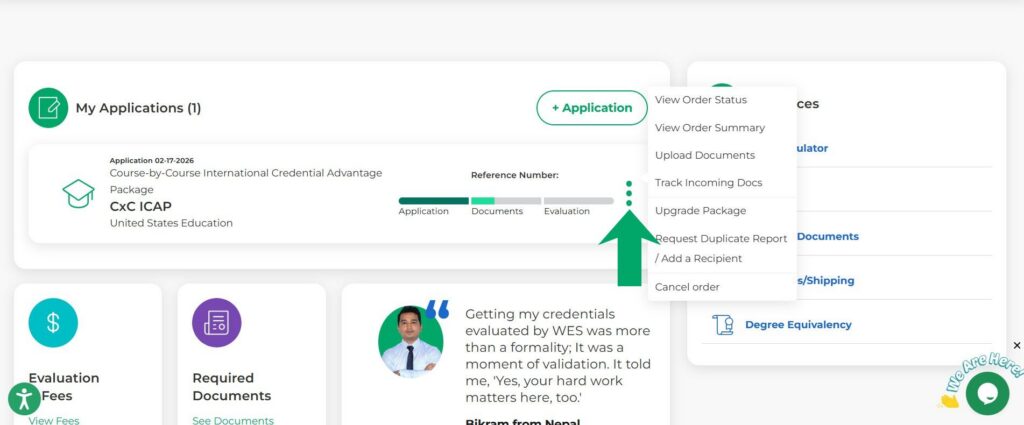
3. Move your cursor to the right side of your application where the three green dots appear and click Upload Documents.
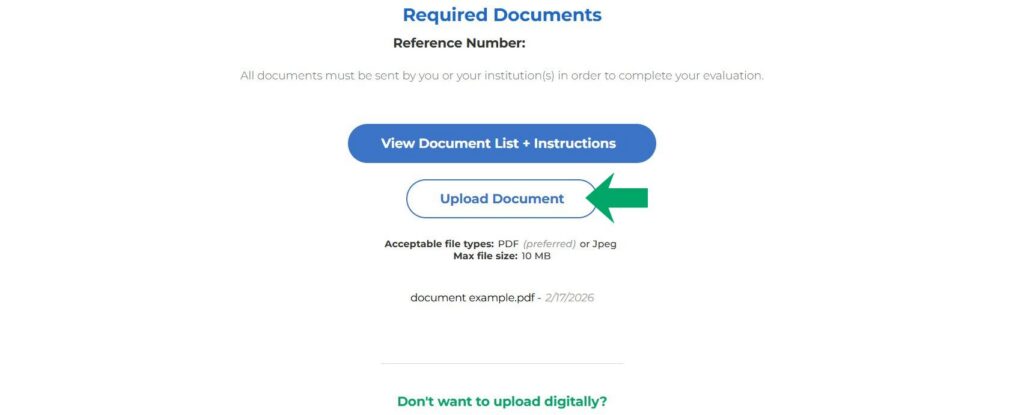
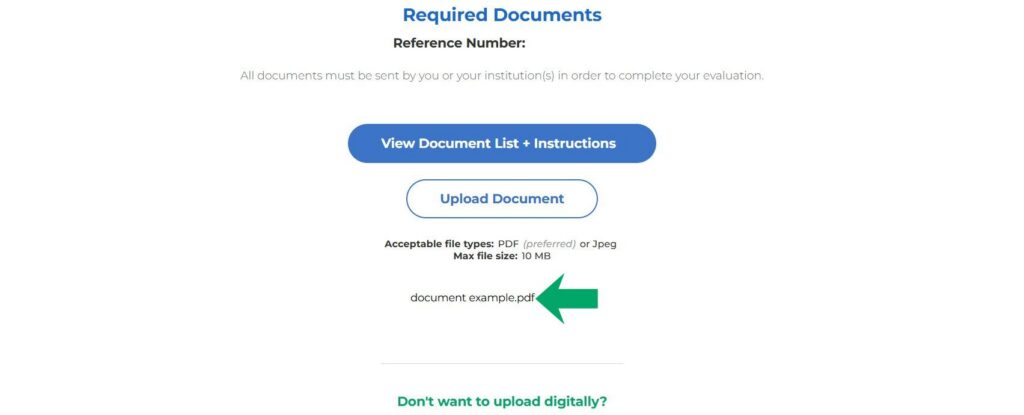
4. All files you uploaded will be shown on this page.
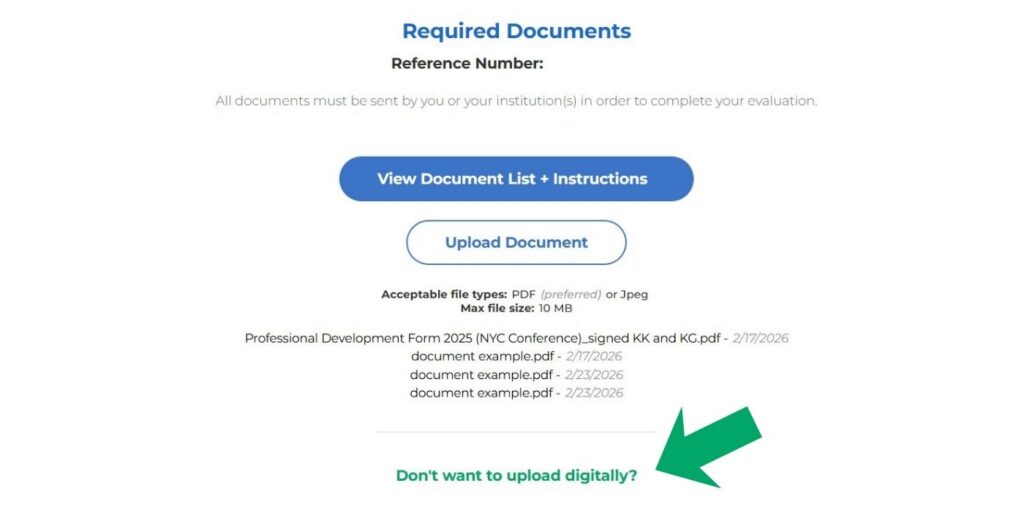
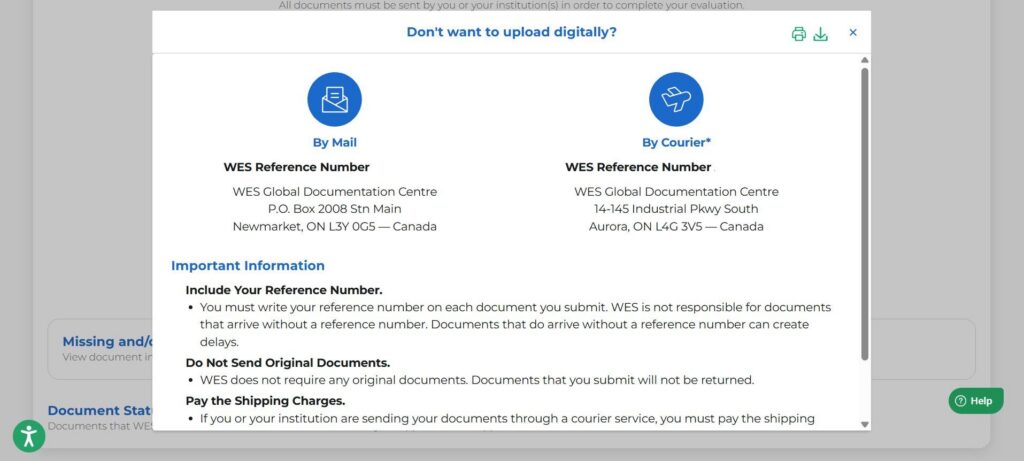
5. If you are unable to upload your documents digitally, click on the “Don’t want to upload digitally?” link. You will see a pop-up window with detailed instructions.
Troubleshooting Common Document Upload Errors
- General Upload Error: This error may indicate that your session was timed out, or the upload was interrupted in some way. Please make sure you are logged into your account and attempt to re-upload.
- Unsupported File Type: Only PDF and JPEG formats are accepted. If needed, convert your files to PDF or JPEG format and retry your upload.
- File Too Large: Files must not exceed 10 MB. You may need to re-save or reduce the file size.
- Poor Image Quality: Files must be clear and legible. If you can see a preview of your file and there is no error message, then proceed to upload it, confirming the image quality yourself.
- Password-Protected or Inaccessible PDFs: Remove password protection or convert the PDF to JPEG format.
- Duplicate or Different Files: Exact duplicates of files do not present a problem. However, if a new version differs from one already submitted (by mail or previously uploaded), it may cause delays while we verify it. Submitting extra documents after your evaluation starts could also result in processing delays.
Final tips and notes about document submission
Remember, the upload feature is only for degree certificates and translations. Do not upload your academic transcripts. Academic transcripts must be sent to WES directly from your institution via an approved electronic channel or in a sealed envelope.
As stated earlier, degree certificates and translations are not a requirement for everyone, so you can disregard this step if you have already submitted these documents or if they are not listed in your required documents.
Finally, uploading your files won’t immediately update your account status. We will review your certificates and translations only after we receive all your academic documents from your institution.
For further assistance, please contact us.
First, log in to your WES account with your username and password.

Want to stay in the loop?
Sign up for our Newsletter. We’ll share updates, what we’re learning, and opportunities through our email list.